Ecommerce Category Page SEO: The Complete Guide for Shopify and WooCommerce

Most stores spend their SEO budget on product pages and blog posts. They ignore the pages that actually capture buyer-intent traffic. Ecommerce category page SEO is the work that turns a blank collection page into a ranking asset, and it is the cheapest organic win available to almost any online store with an existing catalog.
Product pages convert. Category pages decide whether anyone arrives at the product page in the first place. That is the trade most founders miss.
Why Are Category Pages the Highest-Value Pages in Your Store?
Category pages rank for the broadest, highest-volume commercial queries in ecommerce — “men’s running shoes,” “organic skincare,” “standing desks” — because they match what buyers want: options, not one specific product. A single well-optimised category page can drive thousands of monthly sessions from buyers ready to convert.
When a buyer is ready to purchase a specific item by name, they search for it and a product page wins. That traffic is valuable but small. The much bigger pool of organic demand sits one step earlier, when the buyer knows what they want but not which one.
Searches like “linen bedding,” “ceramic dinner plates,” or “wireless earbuds for running” are category-level queries. The volume is higher, the intent is still commercial, and Google almost always rewards them with category pages. If you skip category SEO, you forfeit the broadest, highest-margin slice of organic demand in your niche.
There is a second reason. Category pages are the internal linking spine of your store. A well-optimized category page passes authority to every product it lists. Skip the category, and your product pages compete on weak internal signal alone.
The Five Most Common Category Page Mistakes
Most stores break category SEO in the same five ways. Walk through your top three categories and you will probably see at least three of these.
1. Empty descriptions. The page is a product grid with a bare H1. Google has nothing to read. The page might rank for the exact category name and nothing else.
2. Duplicate copy across categories. A boilerplate paragraph copy-pasted across “Men’s Boots,” “Women’s Boots,” and “Kids’ Boots” with the noun swapped. Google deduplicates this. None of the pages rank well.
3. Faceted navigation indexed by default. Filters like size, color, and price generate fresh URLs that Google crawls and indexes. Suddenly your one category page is competing with forty filter variants for the same keyword.
4. No schema beyond the platform default. No BreadcrumbList, no ItemList, no FAQ block. The category page misses every rich-result opportunity.
5. No FAQs, no buyer questions answered. The buyer has questions before they buy: how do I size, what is the return policy on this category, what is the difference between option A and option B. The page answers none of them, so the buyer leaves and Google reads that as a weak result.
What Makes a Category Page Actually Rank?
A category page ranks when it has a keyword-matched H1, 80-150 words of introductory copy above the product grid, correct canonical tags to prevent faceted navigation duplicate URLs, and internal links connecting it to related categories and product pages.
Does your H1 contain the keyword your buyers search?
Category pages rank for specific phrases — “organic cotton baby clothing,” “professional chef knives,” “wireless gaming headsets.” Your H1 needs to contain the exact or close-variant phrase people are searching.
Shopify auto-generates H1s from your collection title. If your collection is called “Headsets - Gaming,” your H1 is going to read “Headsets - Gaming” — which nobody searches for. Rename the collection. Make the H1 match the search query. It is one of the highest-impact single changes you can make.
For WooCommerce, the category title becomes the H1 by default. Same principle applies — edit the category name to reflect buyer language, not internal catalogue logic.
Does your page have introductory copy above the product grid?
Google needs text to understand what a page is about. A grid of product images and prices gives it almost nothing.
You need 80 to 150 words above the fold — above the product grid — that:
- Confirms the topic and intent of the page
- Contains your target keyword naturally, once or twice
- Tells the buyer what they’re looking at (“25 organic cotton baby bodysuits, sizes 0-24 months”)
This copy should read like a helpful sentence from a store assistant. It should not read like a keyword list.
Are you linking internally between categories and products?
Internal links distribute ranking authority. If your homepage links to your category pages, and your category pages link to your product pages, Google can follow the chain. More importantly, it signals hierarchy — your homepage is the most authoritative page, your category pages are second-tier, your product pages inherit from both.
Most stores link from homepage to categories. Few category pages link back up to the homepage or across to related categories. That’s ranking potential left on the table.
Are you using schema markup on category pages?
ItemList schema tells Google: “This page contains a structured list of products.” It is not required to rank, but it improves how your pages are parsed and displayed in search results. On Shopify, most themes do not add this by default. On WooCommerce, you may need a plugin or a manual JSON-LD block.
The Indexation Hierarchy for Faceted Navigation
Faceted navigation creates an SEO problem by generating hundreds of near-duplicate URLs from filter combinations — size, colour, price — that Google indexes separately. Instead of one strong category page, your ranking authority is split across dozens of weak pages. The fix is canonical tags and selective noindexing of filter URLs.
Faceted navigation is the filter system on your category pages — size, colour, price range, brand. It is essential for the buyer experience. It is also one of the most common sources of SEO damage in ecommerce stores.
Here is what happens. A buyer lands on your “Men’s Trainers” category page. They filter by size 10. Your store generates a URL like:
/collections/mens-trainers?size=10
Or in WooCommerce:
/product-category/mens-trainers/?filter_size=10
Now multiply that across every filter combination. Size 10 + blue. Size 10 + blue + under £80. Shopify and WooCommerce generate a unique URL for each combination. A store with 5 colour filters, 8 size filters, and 3 price filters can produce hundreds of distinct URLs — all pointing at thin, near-duplicate pages with almost identical content.
Google indexes many of these pages. They compete with each other and with the canonical category page for the same keywords. Ranking authority gets split across dozens of weak pages instead of concentrated in one strong one.
Here is the hierarchy I apply to every store I audit:
Index the parent category page. Always. This is the page you want to rank.
Index high-volume single filters with real search demand. “Black leather boots” or “linen bedding king size” are searched. If the data supports it, let those filtered URLs index, give them a unique H1, and write a short intro for the filter view.
Canonicalize the rest to the parent. Color, size, price range, and combinations of filters point their canonical tag back to the parent category. Google understands these are variants of the main page.
Noindex pagination beyond page one if it adds nothing. Page two of a category usually offers no unique ranking value. A noindex with follow links keeps crawl flowing without polluting the index.
The fix for Shopify: Use the canonical tag to point all filtered URLs back to the base collection URL. Shopify does this automatically for some filter types but not all. Audit your store with Google Search Console and check for unintended indexing of filter URLs. Use the noindex meta tag or robots.txt to block pages that should not be indexed.
The fix for WooCommerce: Yoast SEO and Rank Math both have settings to noindex filtered URLs. Enable this. If you are using a custom filter plugin, check whether it generates canonical tags or adds noindex automatically. Most do not.
This is not a quick 10-minute fix. But it is one of the highest-impact technical corrections you can make for ecommerce category SEO. Stores with large catalogues and complex filter systems sometimes see a 20 to 40 percent improvement in category page visibility after cleaning up faceted nav indexation.
The test is simple. If a filter combination has its own search demand, treat it like a page. If it does not, canonicalize it.
How Do You Write Category Page Copy That Ranks Without Feeling Like SEO Copy?
Good category page copy is 80-150 words placed above the product grid. It confirms what the page is about, contains the target keyword once or twice, and reads like a helpful shop assistant — not like it was written for a robot. Avoid keyword stuffing and padding; Google discounts it.
Category page copy fails in two directions. It is either invisible — no copy at all, just products — or it is obvious SEO padding that nobody reads and Google increasingly discounts.
The goal is copy that earns its place. Here is the structure that works.
Opening sentence: Confirm what the page is and who it’s for.
“25 organic cotton baby bodysuits, sizes 0-24 months. All certified GOTS organic.”
That is useful to the buyer and keyword-rich for Google. It does not read like it was written for a robot.
One to two sentences of buying guide context: What should the buyer know before choosing?
“If you’re buying for a newborn, sizes 0-3 months run slightly small — most customers size up by one.”
This is the kind of sentence a good shop assistant would say. Google rewards it because real buyers engage with it. It reduces bounce rate. It builds dwell time. Both are positive ranking signals.
Closing line (optional): A soft pointer to related categories or the buying guide.
“Looking for toddler sizing? See our range of toddler essentials.”
That is your internal link anchor. It is also useful copy. Two functions, one sentence.
Keep the total word count at 80 to 150 words. This is not a blog post. It is a concise, useful introduction that tells Google what the page is about and tells the buyer they are in the right place.
Before and After: A Hypothetical Mid-Size Skincare Store
Take a hypothetical Shopify store selling skincare. The “Moisturizers” collection drives 3% of their organic traffic before fixes.
Before. H1 reads “Moisturizers.” No intro copy. 38 indexed filter variants competing with the main page. No FAQ. Default platform schema only. The page ranks position 41 for “natural moisturizer” and nothing else.
After. H1 reads “Natural Moisturizers for Sensitive Skin.” 180 words of intro copy explaining ingredients, skin types, and how to choose. Sub-category links to “Day Cream,” “Night Cream,” and “Eye Cream.” Five FAQs covering ingredient sensitivity, fragrance-free options, and return policy on opened products. BreadcrumbList, ItemList, and FAQPage schema added. All filter URLs except “Fragrance-Free” and “For Dry Skin” canonicalized to parent.
Six weeks later the page is on page two for the head term, ranking for fourteen long-tail variants, and the two indexed filter pages have started picking up impressions of their own. The store has not added a single new product. They optimized what was already there.
How Should You Handle Internal Linking From Category Pages?
Internal links from category pages pass authority to product pages, help Google discover new pages, and signal your store’s topical structure. Link down to top products, across to related categories, and up to your homepage via breadcrumbs. All three directions matter.
Internal linking from category pages does three things: it passes authority down to your product pages, it helps Google discover product pages that might not be in your sitemap, and it connects related parts of your catalogue so Google understands the topical structure of your store.
Link down: category to product pages. Your product grid already does this. Every product thumbnail is a link. Make sure your top 5 to 10 best-selling or highest-margin products also appear in any “featured” or “recommended” callout above or below the grid. These editorial placements carry more weight than standard grid links.
Link across: category to related categories. A “Men’s Trainers” page should link to “Men’s Running Shoes,” “Men’s Casual Trainers,” and “Trainers by Brand” — if those pages exist. Use a simple “Related categories” row or inline text links in your intro copy.
Link up: category to the landing page. Your homepage and main navigation are the most authoritative pages on your site. Category pages should have a clear breadcrumb trail back up. Most Shopify themes include breadcrumbs. Enable them if they are turned off. WooCommerce with Yoast generates breadcrumbs automatically — but verify they are enabled and visible.
The breadcrumb also adds BreadcrumbList schema when implemented correctly, which improves how your pages display in Google search results.
For more detail on optimising product pages within this structure, see the product page SEO guide.
The 30-Minute Fix You Can Do Today
Pick your single highest-revenue category. Open it in a new tab. Run this sequence.
- Rewrite the H1 to include the primary keyword in buyer language.
- Write 100 to 150 words of intro copy above the product grid. Cover what, who, and one buying consideration.
- Add three to five real buyer FAQs at the bottom of the page.
- Open Google Search Console and check which filter URLs are indexed for this category. Canonicalize anything below 10 monthly impressions to the parent.
- Drop a BreadcrumbList and FAQPage schema block in the page template if it is not already there.
Thirty minutes per category. If you have ten core categories, that is one focused afternoon for the work that usually moves rankings inside a quarter.
Three Quick Wins You Can Apply This Week
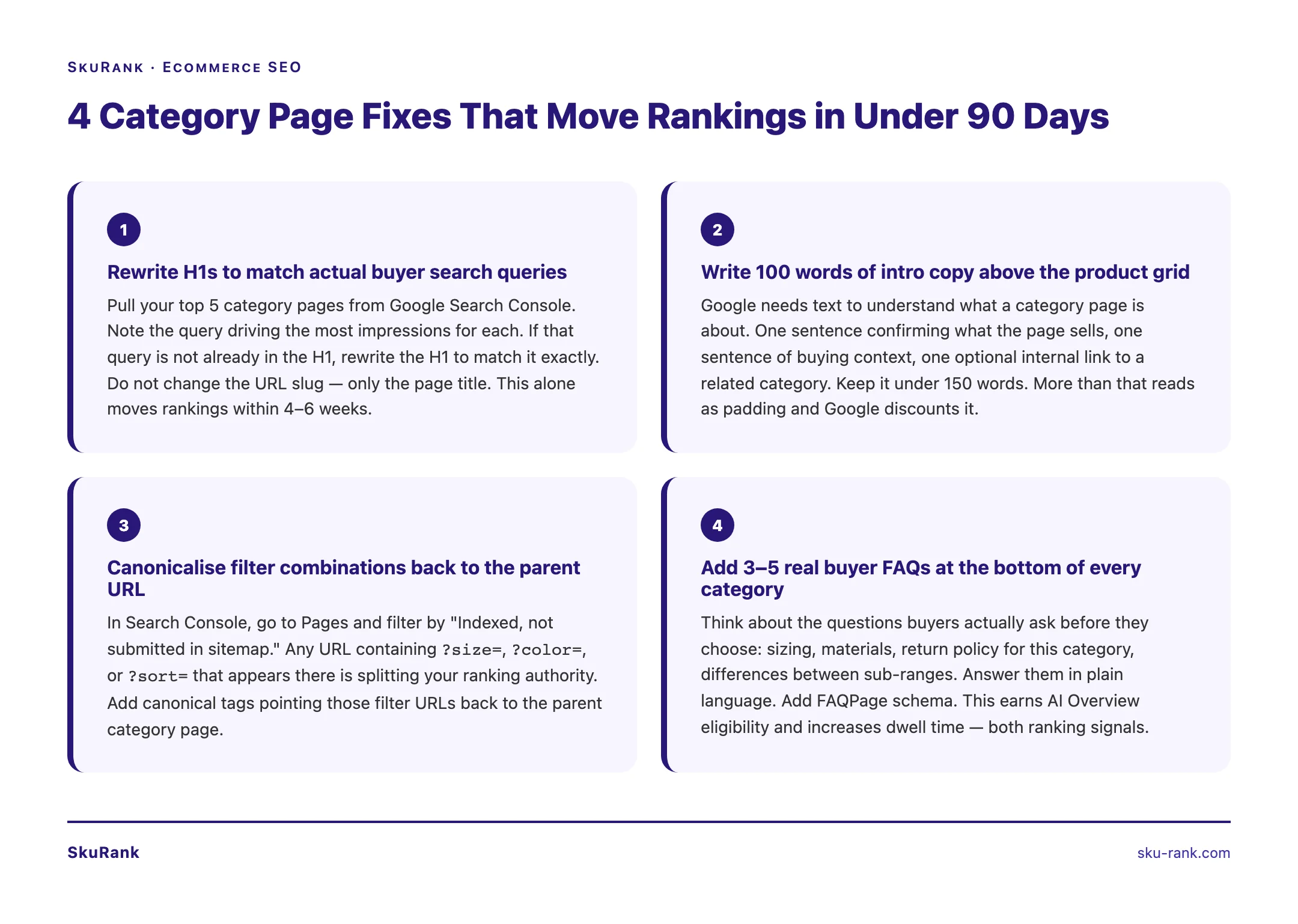
Rewrite the H1s on your five highest-traffic category pages, add 100 words of intro copy to each, and audit faceted navigation URLs in Google Search Console for unintended indexing. These three changes take under two hours total and compound within 4-6 weeks.
You do not need to fix everything at once. These three changes take under two hours and produce measurable results within 4 to 6 weeks.
1. Rewrite the H1 on your five highest-traffic category pages.
Pull your top category pages from Google Search Console. Look at the queries they are already receiving impressions for. Rewrite each H1 to match the top-impression query more closely. Do not change the URL slug — just the page title / collection name.
2. Add 100 words of intro copy to each of those five pages.
Use the format described above. One confirming sentence, one or two sentences of buying context, one optional internal link. Paste it above the product grid in your theme editor. This is a 15-minute task per page.
3. Audit your faceted navigation for rogue indexed URLs.
In Google Search Console, go to Index > Pages. Filter by “Indexed, not submitted in sitemap.” If you see large numbers of filter-generated URLs (?size=10, ?color=blue, ?sort=price), you have a canonicalisation problem. Flag it for your next technical sprint.
These three changes address the most common category page failures in Shopify and WooCommerce stores. None of them require developer time. All of them compound — rankings improve, traffic increases, and the pages you fix first start generating internal link equity for the pages you fix next.
If you want someone to run the full category SEO audit for your store — H1s, intro copy, faceted nav, schema, and internal linking — that is exactly what our ecommerce category page SEO service covers. Or start at the top: ecommerce SEO company overview.
For a broader look at how to evaluate and choose an agency, read the full guide to top ecommerce SEO companies.